
Community Feedback Highlights
... and the Workarounds that Helped Everyone

Welcome to Ubuntu Budgie 26.04
Ubuntu Budgie 26.04 Release Notes
Ubuntu Budgie 26.04 is a long-term release, but that doesn’t mean the story ends on install. The most valuable improvements now come from real daily use: the apps you run, the hardware you rely on, and the edge cases that only appear after hours of normal work.
During the journey to 26.04, the community didn’t just report issues — you unblocked each other with practical workarounds, careful observations, and repeatable steps. That’s exactly the kind of feedback that strengthens an LTS over time and feeds directly into future Ubuntu Budgie releases and the longer-term direction of Budgie 11.
This post highlights the themes you raised most often — and the workarounds that helped keep people moving.
1) Virtual Machines: the quickest route to “weird”
VM testing surfaced issues that don’t always show on physical hardware, especially around graphics acceleration and input.
Symptom: “The cursor is upside down” (QEMU / virgl / acceleration)
Some users saw the cursor render incorrectly when running under QEMU with certain acceleration paths.
Workarounds that helped:
- Prefer QEMU‑KVM / virt‑manager for Wayland sessions where possible.
- Steer clear of GNOME-Boxes
- In virt‑manager, switching the VM display device improved reliability for some setups (particularly when the live session struggled).
- If the graphics stack is unstable, disabling or reducing 3D acceleration often trades performance for stability.
What changed as a result:
Later upstream improvements included a QEMU-focused workaround using WLR_NO_HARDWARE_CURSORS, directly addressing this class of VM cursor issues.
What helps most when reporting VM issues:
VM type, live vs installed session, graphics device, and whether 3D acceleration is enabled.
2) Displays and scaling: where Wayland feels most different
Display configuration is one of the areas where Wayland changes the rules most visibly — and it was a major source of early friction.
Symptom: display settings crash / fractional scaling doesn’t persist
Users reported settings panels crashing in virtual environments and toggles (like fractional scaling) reverting unexpectedly.
Workaround that enabled progress:
- A “Displays” tool based on wdisplays was introduced so users could reliably set resolution, rotation, and scaling while upstream display handling matured.
Why this matters post‑release:
Even in an LTS, multi‑monitor behaviour is where real-world variety matters most: docking stations, mixed refresh rates, rotated screens, and “primary monitor” decisions can behave differently across setups.
What to share when you hit display issues:
Your monitor layout, whether settings persist across reboot, and any pattern tied to suspend/resume or hotplug.
3) Admin apps on Wayland: the security model bites differently
Another big “Wayland reality check” came from GUI apps that want elevated privileges.
Symptom: Synaptic / GUFW won’t launch as admin
Users saw “cannot open display” and GTK initialisation failures when launching admin tools with root privileges under Wayland.
Workarounds shared by the community:
- For Synaptic, allowing local display access and launching via the correct wrapper helped:
- xhost + local:
- then gufw
What this taught us:
Some compositors are stricter than others, and what “just works” elsewhere may fail in a standards-focused environment.
4) Shortcuts and muscle memory: small gaps feel huge
Keyboard shortcuts are one of those areas where even minor changes feel disruptive — and community feedback helped separate “misconfigured” from “missing” from “needs improvement.”
Symptom: workspace switching keys don’t behave as expected
Some reports came down to changed defaults or mismatched expectations.
What helped:
- Checking and aligning shortcuts in Budgie Control Center rather than relying on historic defaults.
Symptom: Super + D (Show Desktop)
This became a recurring request: users want it to behave like a first-class feature.
What improved upstream:
- Show Desktop was reworked in 10.10.2 with a DBus interface and correct restore behaviour, so toggling back restores only what was minimized by the toggle.
What to report now:
Which shortcuts feel missing vs broken, plus your compositor/session and keyboard layout details.
5) Dock and panel behaviour: a perfect example of “users helping users”
Crystal Dock became one of the clearest examples of community debugging turning into a real fix.
Symptom: dock appears but won’t accept mouse clicks
Users described a dock that looked present but behaved like an invisible layer blocked interaction.
Workarounds that helped immediately:
- Restarting the dock resolved it for some users:
- killall crystal-dock then relaunch.
- A more durable fix was adding an autostart delay using a supported desktop entry key (instead of shell syntax in Exec=, which can break parsing):
- X-GNOME-Autostart-Delay=5
Why we’re calling this out:
This is the model feedback we love: clear symptom, tested workaround, and enough detail to turn it into a packaged improvement.
6) Applets: rebuilding, not just “making it work”
Wayland made applet compatibility a practical topic rather than a theoretical one.
Symptom: installing older applets breaks parts of the session
One user hit a particularly instructive failure mode: installing a bundle of applets and then running autoremove removed critical components, resulting in a broken session.
Safer approaches that emerged:
- Install applets incrementally and review what autoremove proposes before accepting.
- Ensure the correct repositories are enabled when instructed, since missing the relevant test repository explained why some applets didn’t appear or behave as expected.
A key clarity point:
Some applets are inherently tied to X11 and won’t be viable under Wayland — being explicit about that avoids false expectations and helps focus effort where it matters.
Final implementation:
We now install budgie and its applets in an architecture specific location - so for intel its in /usr/lib/x86_64/budgie-desktop
This means any applets previously installed will no longer appear in budgie-desktop-settings because they will be installed in the previous - now wrong - location.
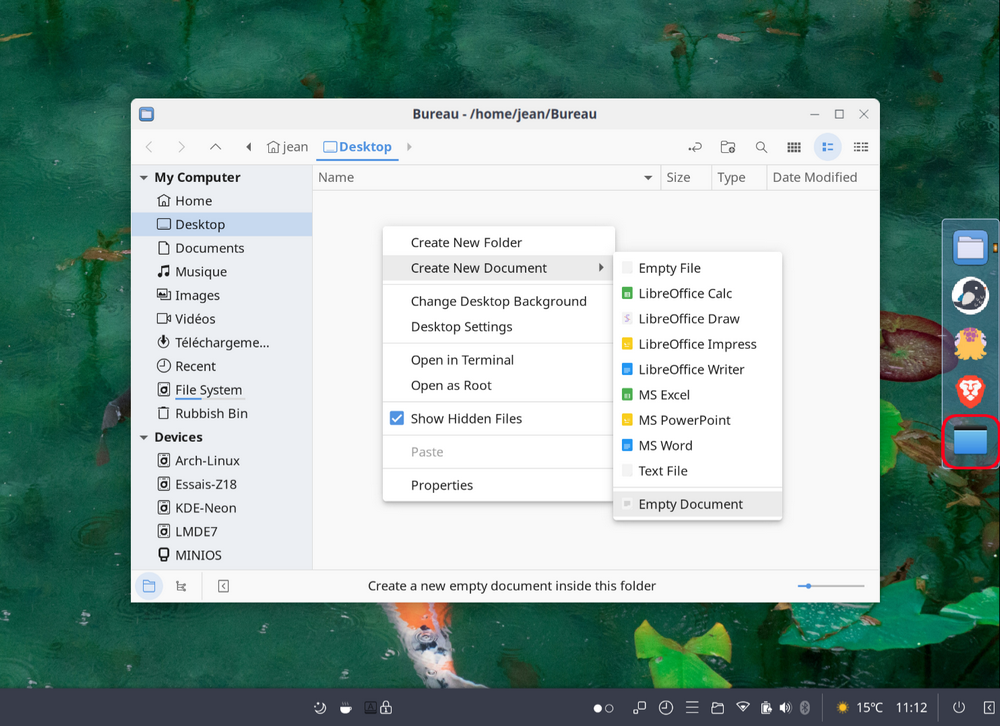
7) Desktop: Where is my right click to create files
Symptom: No right click option on the desktop to create files & folders
Noted a few times was the loss of various right click options such as the ability to create files and folders. This capability was provided by nemo-desktop. Unfortunately the team had to drop nemo-desktop because it was not wayland compatible.What was noted that the desktop started to behave like an app window, sometimes appearing in the alt-tab sequence,sometimes appearing on-top of other apps.
What was done:
I spent quite a bit of time tidying up the existing budgie solution - budgie-desktop-view. It was a simple solution that provided desktop icons but had no ability to rearrange icons nor open items at once.But it will never will be a ‘full file-manager’ type app.
Inspiration:A community member has proposed a workaround - would work with both crystal-dock and pinning to the icon-task list. Let community member jlib explain further…
Until Nemo becomes a Wayland-compatible application and maybe manage once again the desktop directly, why not provide an icon in Crystal Dock that allows you to view the desktop in Nemo and thus create files or folders with a right-clickA nemo-desktop.desktop launcher in ‘/usr/share/applications’ like this one can be created:
[Desktop Entry]
Version=1.1
Type=Application
Name=Nemo desktop
Comment=Display the desktop in Nemo
Icon=user-desktop
Exec=nemo Desktop
Actions=
Categories=Filesystem;GNOME;System;System-Tools;
An entry at the end of the list in the “launchers” section of ~/.config/crystal-dock/Budgie/panel_1.conf amend the line to include nemo-desktop e.g. launchers="nemo;org.buddiesofbudgie.controlcenter;ubuntu-budgie-welcome_budgie-welcome;nemo-desktop"… and that’s it:
The pattern that makes feedback actionable
Across every category above, the reports that led to the best outcomes shared the same shape:
- what happened
- what was expected
- steps to reproduce
- environment details
- and (crucially) the workaround, even if imperfect
That combination helps other users immediately and gives maintainers the information needed to fix things properly.
How to Report Issues (So Others Can Help — and Fixes Can Happen Faster)
Ubuntu Budgie 26.04 is an LTS, so the most valuable reports come from real workflows. When you post an issue, think of it as a small “care package” for the next person who hits the same thing — and for the maintainer who needs to reproduce it.
Where to report
- Start in the Ubuntu Budgie community discussion area so issues can be triaged collaboratively and routed correctly (Ubuntu Budgie packaging vs upstream Budgie vs compositor vs toolkit/app).
- During the Wayland transition, the emphasis was on keeping reports central and actionable rather than scattered; that approach remains helpful post‑release.
What to include (copy/paste checklist)
-
What happened and what you expected instead.
-
Steps to reproduce (numbered steps help a lot).
-
Frequency (every time / intermittent / after suspend).
-
Environment:
- Hardware or VM (and which VM platform).
- Session/compositor (labwc / wayfire / etc.).
- GPU (AMD/Intel/NVIDIA) and monitor setup (single/multi, scaling).
-
Any special packages or repositories (especially if you enabled development/test sources).
Commands that help (optional but extremely useful)
echo $XDG_SESSION_TYPE
echo $XDG_CURRENT_DESKTOP
inxi -G
These give others a quick, comparable snapshot of your session and graphics stack.
If it’s a “Wayland difference” issue
Please say so explicitly if it involves:
- display layout/scaling,
- lock screen/input focus,
- admin GUI apps,
- app window matching/tasklist behaviour.
Include workarounds — even partial ones
Workarounds are often the clue that leads to a real fix. Even “kill and restart XXXX” or “only happens with 3D acceleration” can save hours and help others immediately.
A good issue report (example template)
Summary:

Expected:

Actual:

Steps to reproduce:

1)

2)

3)

Environment:

- Ubuntu Budgie version:
- Compositor/session:
- GPU:
- Hardware/VM (which one):
- Monitors (single/multi, scaling):

Workarounds tried:

-

Logs / output (if any):

-
Closing: The best LTS is the one the community grows into
Ubuntu Budgie 26.04 is stable and ready for daily life — but the real strength of an LTS comes from the community improving it over time. Every clear report, every workaround, and every “here’s what helped” post makes the experience better for everyone today, and feeds into the maintenance stream and the future direction of Budgie 11.
Keep sharing what you find. Keep sharing what works. That’s how this desktop gets better — together.